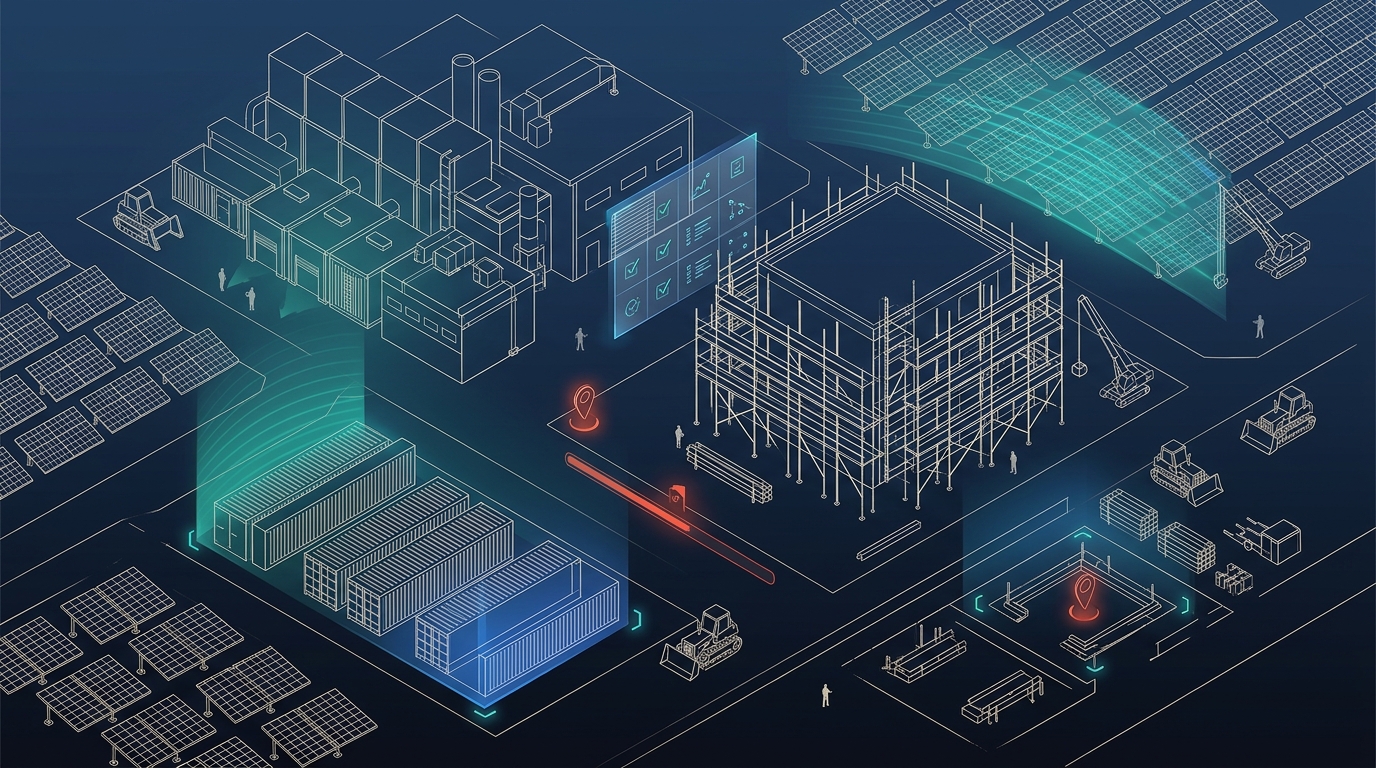
Hero image not yet added — drop a file at /assets/hero-construction.jpg
PyCray Technologies
PyCray Technologies

SiteIQ

Join a project

Open existing project

Pick the project, then the role you will work as — QC Operator, QC Lead, field crew, or leadership.

Role-basedEvidence firstOne workspace
Sign in

Welcome back

Use the demo account for the role you selected.

Creating as
QC Lead sets up the project and defect desk. Project Manager keeps the existing progress-tracking workspace.
Sign in as
Demo readySecure sign-inInstant workspace
QC Lead

Set up the project

Enter details and pick a building type. The zone-wise QC checklist loads automatically after you create.

New project
Building type
Luxury residential liveZone checklists auto-loadReady to inspect
PyCray Technologies
SiteIQ
Vision · Live
PyCray · PoC

SiteIQ

AI Progress Tracking & Risk Flagging
PyCray Technologies
MODEL: CLAUDE VISION
MODE: PORTFOLIO TRACKING
Mode hide ▴
Project type hide ▴
Project
+ create new project
Select Role
Supervisor queue
Every field submission lands here first. Nothing reaches the project record — or Project Manager / Leadership views — until approved.
Review log
Full details for every pending, approved, and rejected submission.
Quality control · Digitize · Track · Close
Quality control
From project setup to defect closure.
Inspection checklist
Mark each item Pass, Fail, or N/A. Add comments, photos, videos, or lab-report photos/PDFs, then Post to save them on the inspection log. Raise a defect against any failed question.
Defect management
Assign defects, track Open → In Progress → Closed, and attach closure evidence when the site is rectified.
Project completion
0%
0 zones assessed
clear all stored data for this project type
Status report
Reference schedule (WBS / L4) hide details
WBS details
Upload the WBS sheet above. Expand L1 to show related L2 rows, then expand L2 to show related L3 activities.
Zone deep dive —
Risk Register show ▾
01  Upload site photo
A Project Manager needs to upload the WBS / L4 sheet before photos can be tagged to an activity.
Supervisor voice note (optional)
02  Submission Status
03  Aerial check (optional) show ▾
A second-level cross-check only — not an independent measurement. Upload a drone/aerial photo and Claude compares it against what the ground-level zone photos already concluded, flagging only mismatches (e.g. "ground says RCC is complete, but the aerial still shows open excavation"). Skip this entirely if you don't have drone coverage — everything else in the tool works without it.
Current zone labels (reference these in the coverage note below):
Pilot/engineer voice note (optional)
Maintenance type
Tower condition summary
0
0/7 zones surveyed
clear all stored tower data
Condition findings
Tower report
01  Select tower zone
Colored edge = worst open finding · green = no open findings · blue = low · amber = medium · red = high · dark red = critical
02  Upload survey photo
Technician voice note (optional)
03  Survey Result
Raise defect